How to Install a PS5 SSD in Under 10 Minutes
A step by step guide to installing a PS5 SSD: panel off, one screw, drive seated, formatted, and moving games in under 10 minutes on launch and Slim consoles.
The M.2 expansion bay is the one part of the PS5 that Sony designed for you to open. No warranty stickers, no glue, no soldering. One sliding panel, one screw on the bay cover, one screw on the drive. If you can change a watch battery, you can do this, and you can do it in under ten minutes.
The reason to do it now is calendar shaped. GTA 6 lands on Thursday November 19, 2026, the preload will want its space days before that, and most launch consoles have been full since 2023. The launch PS5's 825GB drive leaves roughly 667GB usable after the OS takes its cut; we ran the install-by-install numbers in the storage math and the conclusion was not subtle. If you want the one-minute version, run your console through the readiness check and it will tell you whether you need this page at all.
This guide assumes the drive is already on your desk. If it is not, the full seven-drive ranking lives in the SSD roundup. The two drives we point most people at are below.
What you need
Three things. That is the entire toolkit.
- A Phillips #1 screwdriver. The bay cover screw and the drive spacer are both small Phillips heads, and #1 fits both. A magnetic tip earns its keep here, because the bay screw is small enough to vanish into the fan shroud if you fumble it.
- An M.2 NVMe SSD with a heatsink already fitted. Sony requires effective heat dissipation in the bay, and a factory-fitted heatsink means zero extra parts and zero clearance guesswork. Both drives below ship with one.
- Ten minutes and a table with decent light. Not the carpet. Hard surface, and touch something metal before you start handling the drive.
No torx bits, no spudgers, no thermal paste. If a guide tells you otherwise, it is describing a different console.
The drives

Samsung
Samsung 990 Pro 2TB (Heatsink)
- capacity
- 2TB
- read
- 7,450 MB/s
- write
- 6,900 MB/s
- nand
- TLC
- dram
- Yes (2GB)
$189
Checked at publish
Affiliate link. We may earn a commission at no extra cost to you.
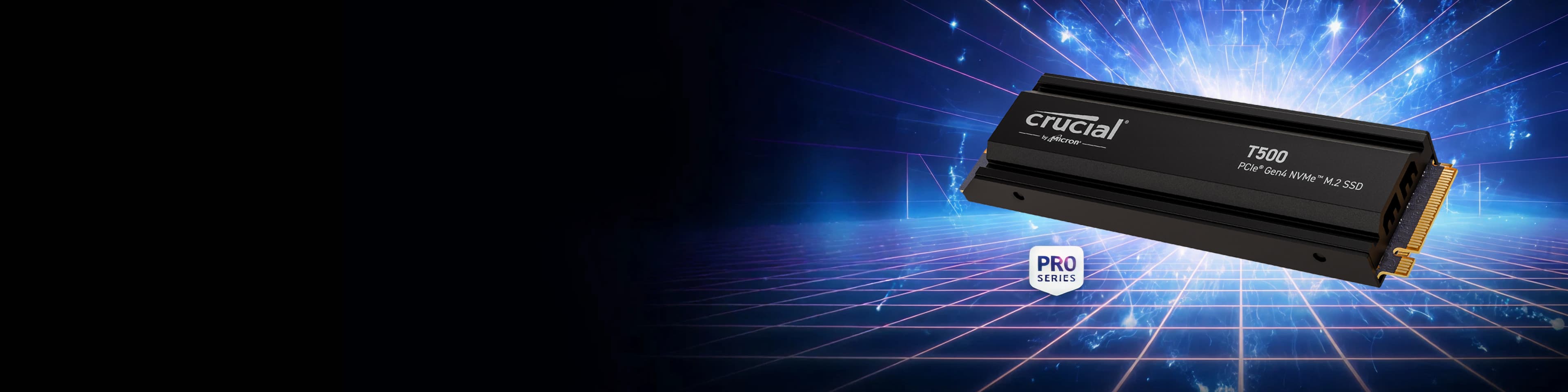
Crucial
Crucial T500 2TB (Heatsink)
- capacity
- 2TB
- read
- 7,400 MB/s
- write
- 7,000 MB/s
- nand
- TLC
- dram
- Yes
$135
Checked at publish
Affiliate link. We may earn a commission at no extra cost to you.
| Model | capacity | read | write | dram | heatsink | warranty | Price | Link |
|---|---|---|---|---|---|---|---|---|
| Samsung 990 Pro 2TB (Heatsink)THE PICK | 2TB | 7,450 MB/s | 6,900 MB/s | Yes (2GB) | Included | 5 years | $189 | Check |
| Crucial T500 2TB (Heatsink)VALUE PICK | 2TB | 7,400 MB/s | 7,000 MB/s | Yes | Included | 5 years | $135 | Check |
Both are 2TB, TLC, DRAM-equipped 2280 drives with factory heatsinks inside Sony's clearance limits, and both carry five year warranties. Manufacturer-rated sequential reads:
| 990 Pro | 7,450 MB/S |
|---|---|
| T500 | 7,400 MB/S |
Sony recommends 5,500MB/s or faster for the bay. Both clear that line by roughly 35 percent, so the install steps below are identical either way: this is a price decision, $189 against $135, not a compatibility one. The deeper version of that decision is in the roundup. Now the actual job.
Step 1: Power down and unplug
Full shutdown, not rest mode. From the control centre choose Power, then Turn Off PS5, and wait for the light bar to go dark completely. A console in rest mode is still powered, and the bay is not meant to be opened on a live board.
Then pull every cable: power first, then HDMI, USB, and ethernet if you run wired. If the console has been running, give it a few minutes to cool. You are about to put your hands next to the fan and the board, and warm metal makes people rush.
Step 2: Remove the side panel
This is the only step with technique, and the technique is orientation plus a slide. On the launch model:
- Remove the base or stand if fitted.
- Lay the console flat on your table with the PS logo facing down. The panel now facing up, the plain one without the logo, is the one that comes off. The expansion bay is underneath it.
- Grip the corner of the panel nearest you, lift that corner a few millimetres, and slide the panel toward the flat end of the console. It travels about a centimetre and releases.
There are no screws holding the panel on. It is plastic clips and a slide channel, and when you have the angle right it moves with light pressure and comes away cleanly.
Do not force the panel. If it does not slide with light pressure, the problem is your lift corner or your slide direction, not insufficient muscle. Put it back flat and start the grip again. The clips are the one component in this entire job you can actually break, and a cracked panel is a cosmetic scar you keep forever on a ten minute task.
The Slim difference
The PS5 Slim splits the side covers into four smaller panels: two gloss on top, two matte below. The expansion bay sits under one of the small top covers rather than a full-length panel, so you remove less plastic and the slide travel is shorter, but the motion is the same lift and slide and the same warning applies. Everything from Step 3 onward is identical on both consoles. The other difference you already know: Slims ship with 1TB instead of 825GB, which buys you months, not a generation.
Step 3: Open the expansion bay
With the panel off, look for a rectangular metal cover near the fan, held by a single Phillips screw. That is the bay.
- Remove the screw and lift the cover off.
- Inside is a long slot with screw holes numbered 30, 42, 60, 80, and 110. Those are drive lengths in millimetres.
- The drive screw and its little spacer are parked in the 110 hole from the factory. Unscrew them and move the spacer to the hole marked 80, because both picks here, and nearly every PS5 drive sold, are the 2280 size.
The spacer is the part people lose. It is the size of a grain of rice and it is load bearing: the drive screws down onto it. Park it in the 80 hole before you pick up the drive.
Step 4: Seat the drive
Handle the drive by its edges and line the connector up with the slot.
- Insert the connector end at a slight diagonal angle, about 30 degrees off flat, and push firmly until it stops. It takes more push than feels polite. A half-seated drive is the number one cause of a console that boots without seeing it.
- Press the raised end down flat so the notch in the drive lands on the spacer you just placed.
- Drive the screw through the notch into the spacer. Snug, not torqued. You are holding a circuit board down, not assembling furniture.
Then reverse your way out: bay cover back on with its screw, panel laid on slightly offset and slid back until it clicks home. The panel goes on the same way it came off, and the same no-force rule applies in this direction too.
Step 5: Format it
Reconnect power and HDMI and boot the console. The format prompt appears on boot, before you reach the home screen: the PS5 detects the new drive and will not use it until it is formatted. Follow the prompt. It takes seconds, and it only touches the new drive; your console storage and everything on it is untouched.
After formatting, the console runs a quick read measurement and shows you a number. Treat it as a sanity check, not a benchmark. If the figure comes back wildly below the drive's class, power down, unplug, and reseat the drive, because the connector was not fully home. If you somehow dismissed the prompt, the same format lives at Settings > Storage > M.2 SSD.
Step 6: Move your games
Two settings finish the job:
- Move the backlog. Settings > Storage > Console Storage > Games and Apps. Select titles, choose Move, and send them to the M.2 drive. Moving is dramatically faster than redownloading, and games run directly from the bay at full speed; it is real storage, not a parking lot.
- Point new installs at the new drive. Settings > Storage > Installation Location. Set PS5 games to install to the M.2 SSD and your console storage stops being the thing you manage.
If you are doing this with November in mind, leave generous free space on whichever drive GTA 6 will call home. Rockstar has not published an install size, and our planning figure in the storage math is 150GB until they do. Preloads historically land days before launch, so the space needs to exist before the third week of November, not on the night.
A note on the numbers
The ten minute figure describes the size of the procedure, not a stopwatch average from our own bench. The job is six short steps with two screws and one format prompt, and most people clear it well inside that window the first time. The read speeds in the drive table are manufacturer ratings, labelled as such, not figures we measured. We have not run timed installs or post-format read tests on these drives, so we make no claims that we have.
How to choose, if you still have not
The install is the easy half; the buying decision is where people stall. The short version:
- Capacity first. 2TB is the answer at current US pricing. One GTA-sized install plus a normal rotation makes 1TB a false economy within months.
- Heatsink fitted, always. Bare drives save almost nothing and add a clearance and thermals problem you do not need.
- Past Sony's 5,500MB/s line, buy on price. The console's I/O pipeline is the bottleneck, not the last 150MB/s of rated read.
The 990 Pro at $189 is the pick and the T500 at $135 is the value pick. If you are weighing the 990 Pro against the field's other heavyweight instead, the head-to-head is in SN850X vs 990 Pro for PS5, and the full seven-drive field is ranked in the SSD roundup.
Whichever drive you pick, the job on this page does not change: one panel, two screws, one format prompt. Do it on a quiet Tuesday in June, not a frantic Wednesday in November.
FAQ // Straight answers
Does installing an M.2 SSD void the PS5 warranty?
No. Sony built the expansion bay for user installation and publishes official instructions for opening it. Removing the panel the documented way and fitting a drive in the M.2 bay does not affect your warranty. Physical damage from forcing a panel is a different story, which is why this guide tells you twice not to force anything.
Do I need a heatsink on a PS5 SSD?
Yes. Sony requires effective heat dissipation on M.2 drives, and a bare drive under sustained open-world streaming is a throttling candidate. Buy a drive with a factory-fitted heatsink, like both picks in this guide, and the question disappears. Fitting your own heatsink is possible within the bay's clearance limits but saves you nothing at current prices.
What size M.2 drive fits in the PS5?
The bay accepts 2230, 42, 60, 80, and 110 length drives, with clearance limits of 25mm width and 11.25mm total height including the heatsink. Nearly every PS5-ready drive sold, including both picks here, is the 2280 size, which is why the spacer goes in the hole marked 80.
Will formatting erase my existing games?
No. The format prompt applies only to the new M.2 drive. Console storage and everything on it is untouched. The new drive must be formatted before the PS5 will use it, and the console will not let you skip the step.
Can PS5 games run directly from the M.2 drive?
Yes. The M.2 bay is full-speed storage, not a parking lot. PS5 games play directly from it, and you can point new installs at it by default under Settings > Storage > Installation Location.
Is the install different on a PS5 Slim?
Slightly. The Slim uses four smaller panels instead of two large ones, so you remove a smaller cover with a shorter slide to reach the bay. The bay itself, the single screw, the spacer positions, and the format step are identical to the launch model.